Department Contact Agent
This agent is able to retrieve the correct email address for a given department contact. It accomplishes this by using sequencing multiple tools dynamically. This is one of the key, powerful features of Agents. They understand the intent of users and can identify which tools, and which sequence is needed to complete the task.
Create and Configure the Agent
The following steps guild you through creating the "Department Contact" agent
-
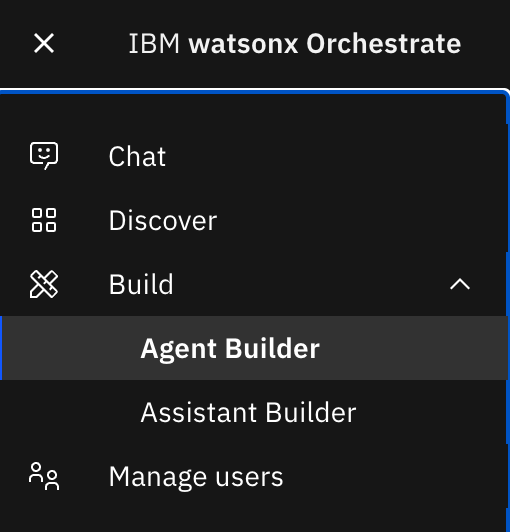
Login to Watsonx Orchestrate and select 'Agent Builder' from the main navigation menu
-
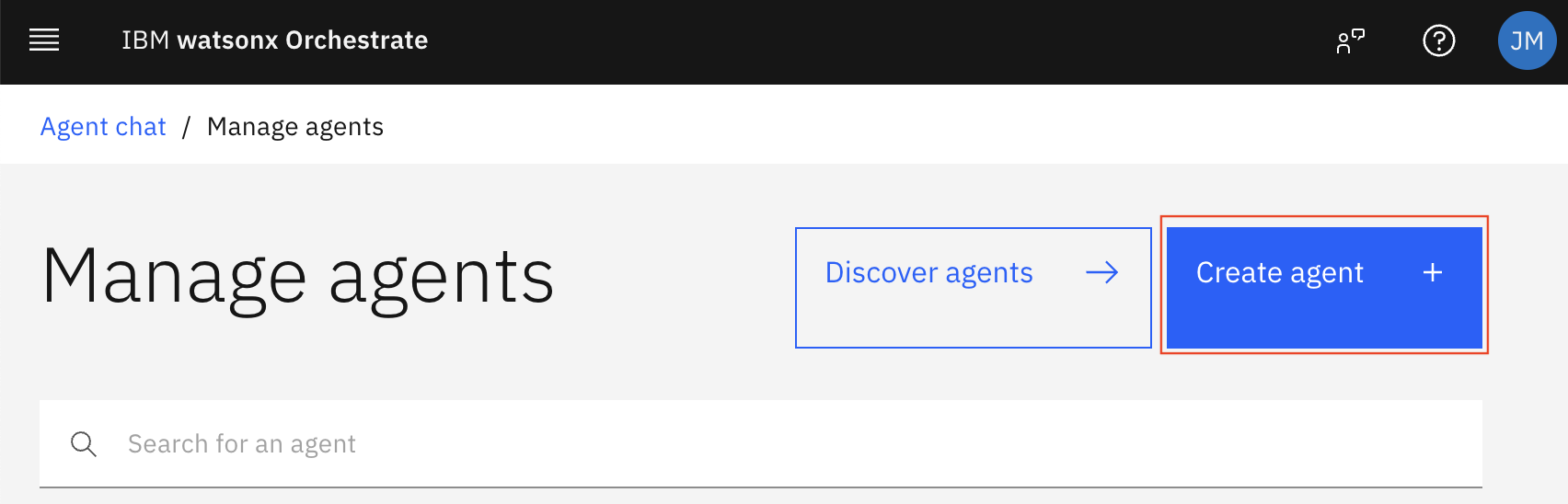
From the Manage Agents page, click on 'Create agent'.
-
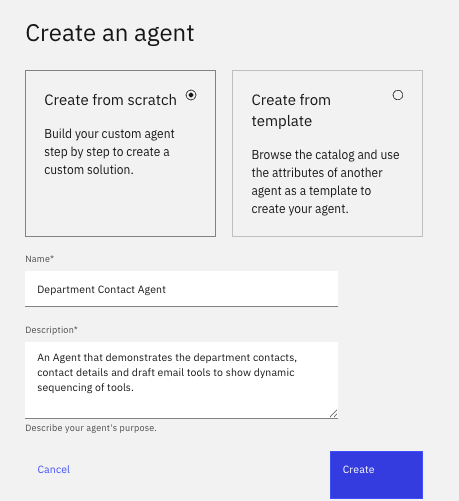
From the Manage agent page, select "Create from scratch", and provide a name (e.g. Department Contact Agent) and description (An agent that demonstrates creating an email to a specific contact in the list using a dynamic sequence of tools)
-
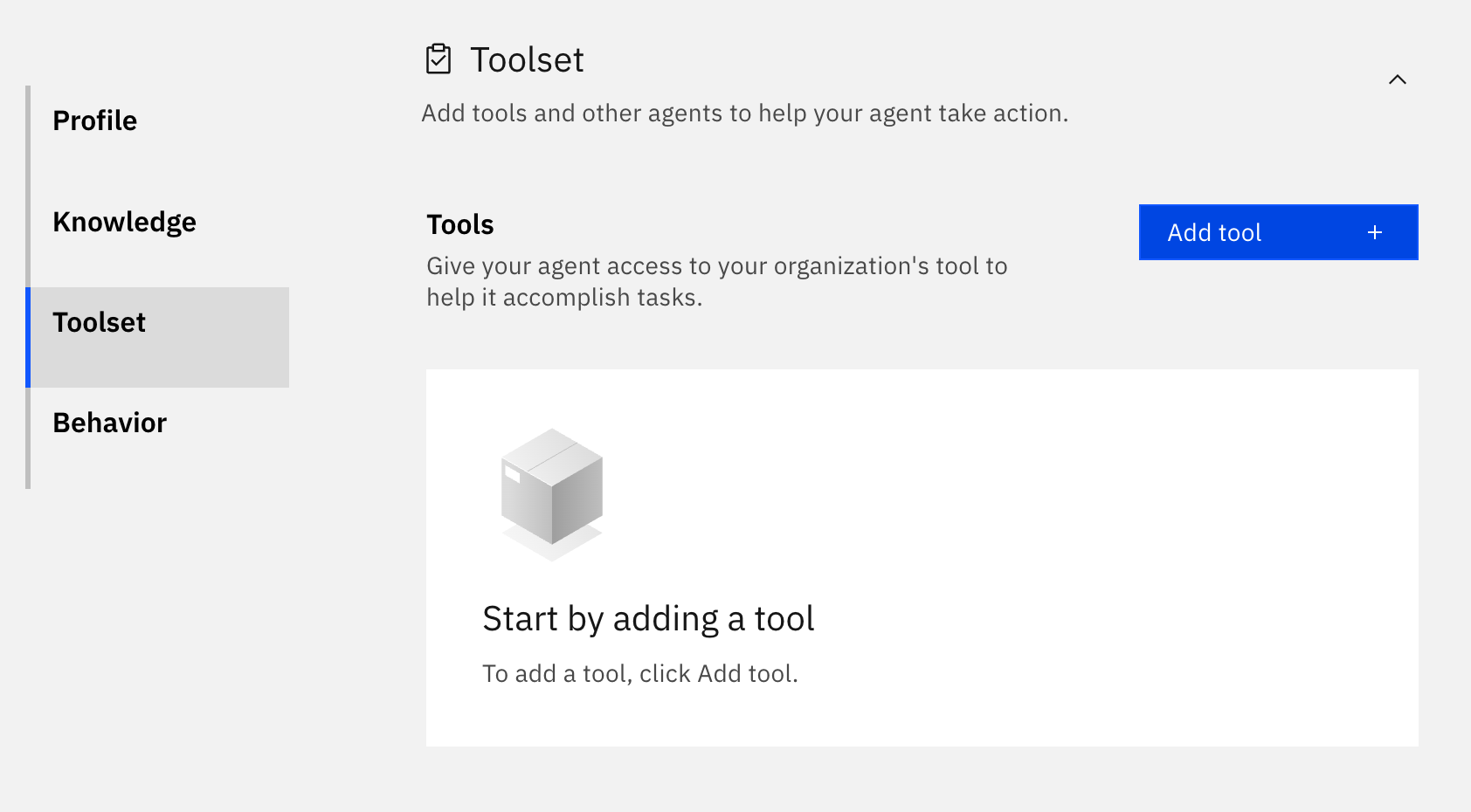
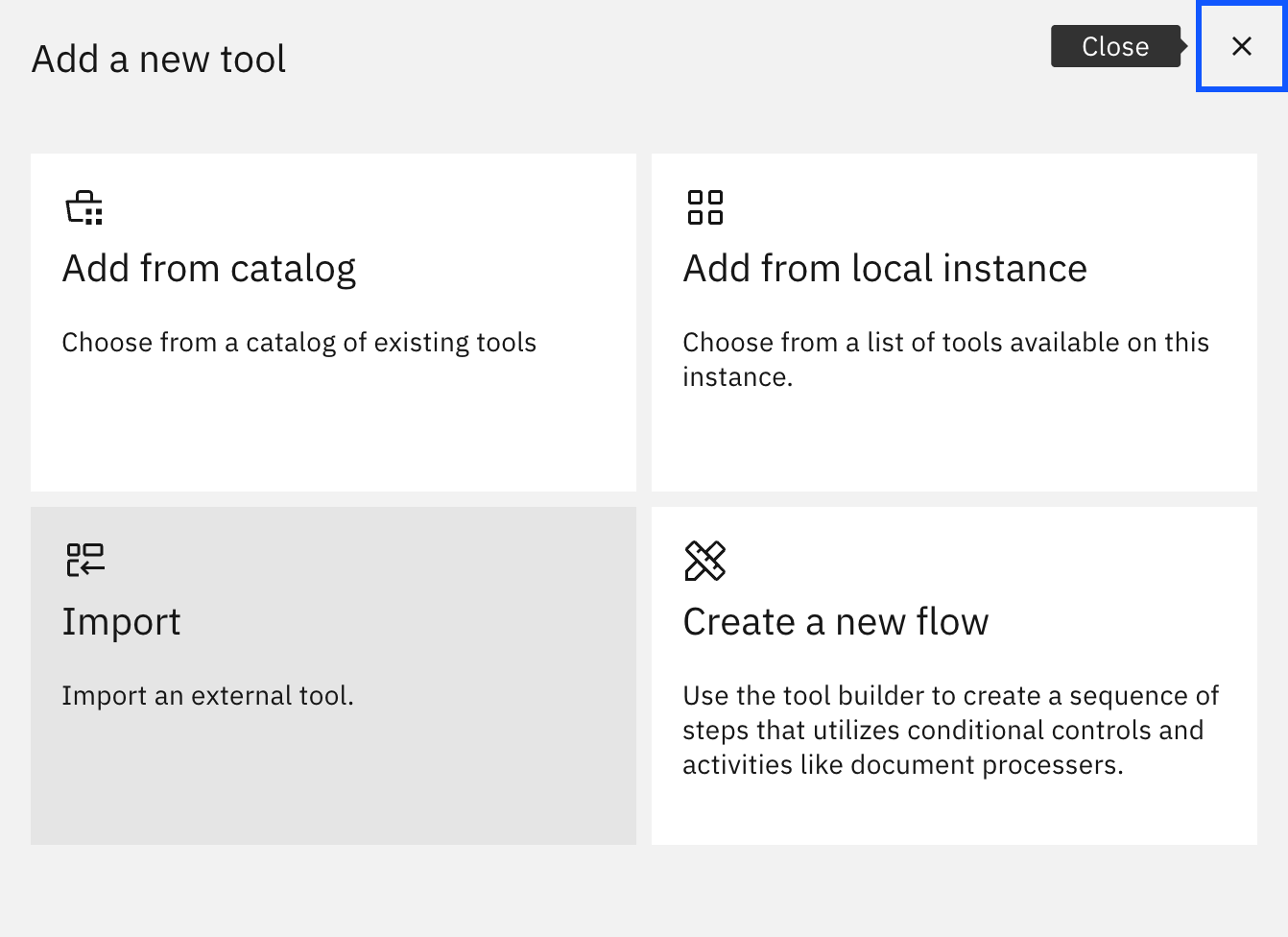
The next step is to add the tools. Scroll down to the "Toolset" section and click on "Add tool", then select "Import" to Import an External Tool and upload this Email Department Contact spec file.
-
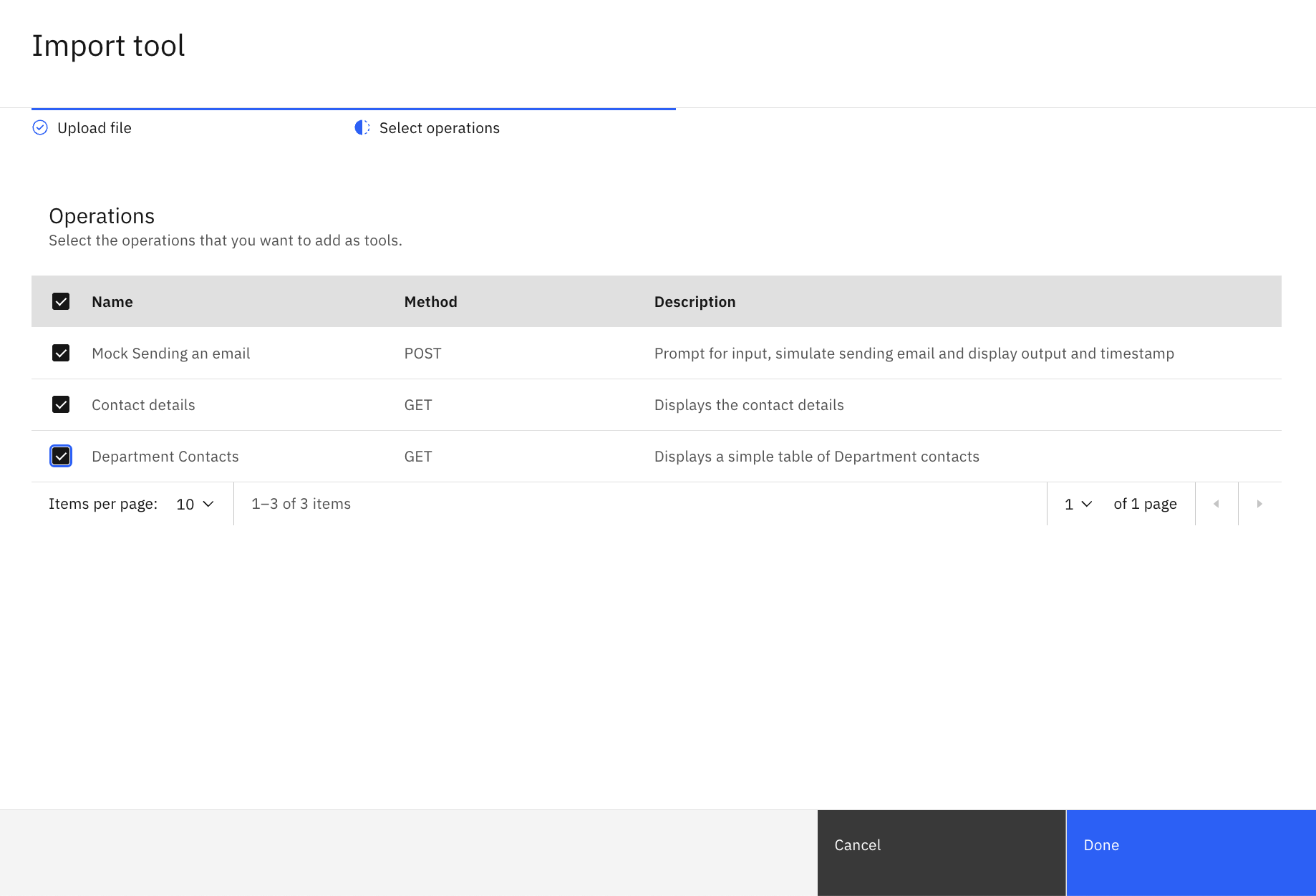
The spec file contains three tools: Send an email, Department Contacts, Contact Details. You need to select all three tools and click 'Done'.
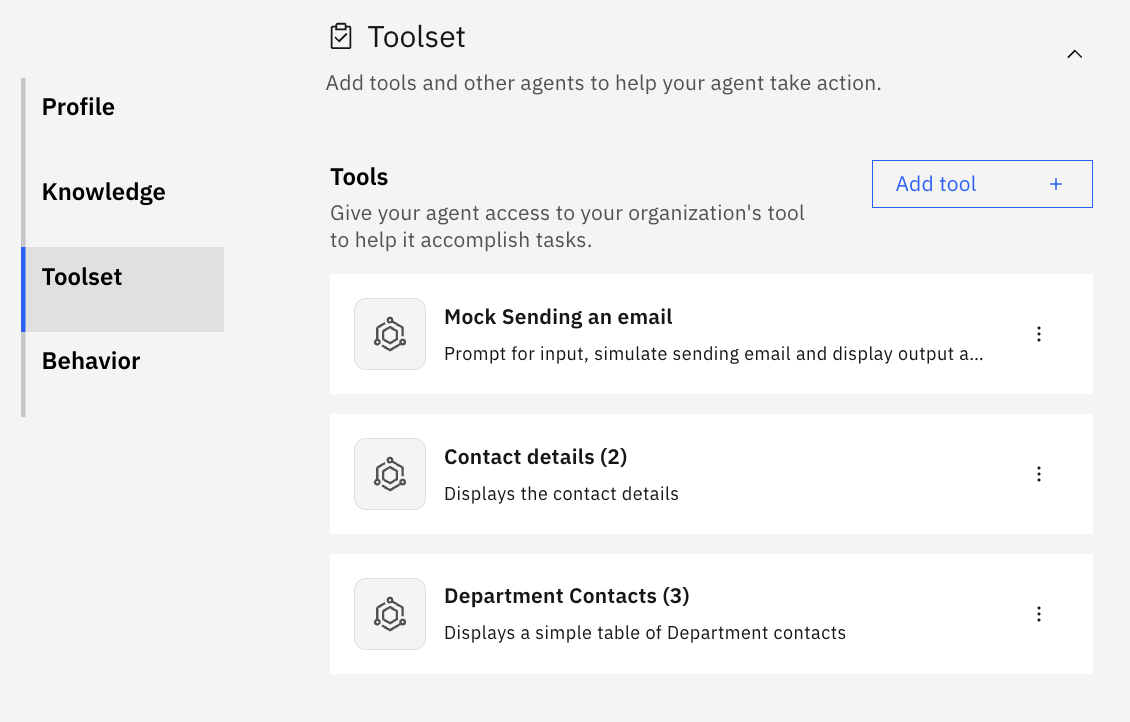
Once the tools are imported, you should see then in your agents list of tools:
-
This is a simple instruction to get you started. Try this example, and then iterate on this example to get the Agent to complete the task to your satisfacion. You can use the chat prompt below to test your instructions.
Example
Be verbose and polite and use the name "John Doe" in the signature of all emails. Always show a well formatted draft email with line breaks and I ask me to confirm before sending.
You can see here a working example.
Example
If you are asked to draft an email to a department (dpt), always use the 'Department Contacts' tool to look up the department contact and 'contact details' tool to get their email address to be the recipient of the email.
Be verbose and polite and use the name "John Doe" in the signature. Always show the draft and format it nicely in paragraphs.
When asked to send the email use 'Mock Sending an email' tool. Always confirm I want to send the email first, unless I say it is good to go. Also add the current day & time in confirmation message and display it out in a table.
Also add a subject line summarizing the email. Put it right above message and under To and cc fields.
Don't tell me why you do, just do it.
Chat with the Agent
Now that you have built the agent, you can interact with it right there in the builder experience. For example, try this message