Chat with Hello World Agent
Objective
At the end of this tutorial, you should have sent a message to the agent using the /runs api.
Chat with the Agent via /runs API
This section walks you through setting up and using the /runs API.
-
First we need to create a new HTTP request for the /runs API. By closing all the existing tabs, you should see an empty canvas with an icon to create a new HTTP request.
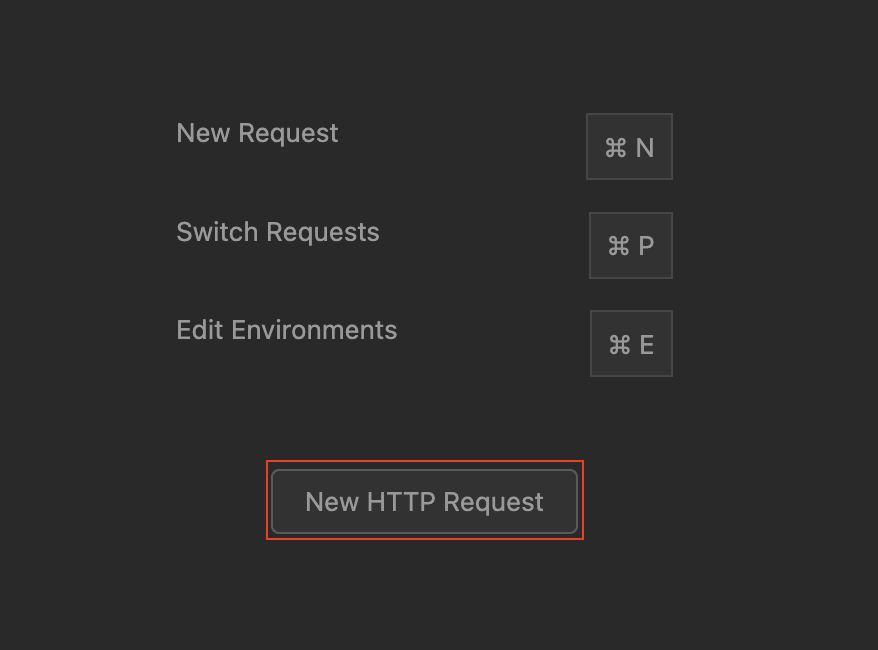
-
Next we can populate the URL using the same technique as we did above, select POST method from the drop down list, and then type a period "." and select _.wxo_url from the list. Then append this to your host:
Here is a view of the completed URL configuration
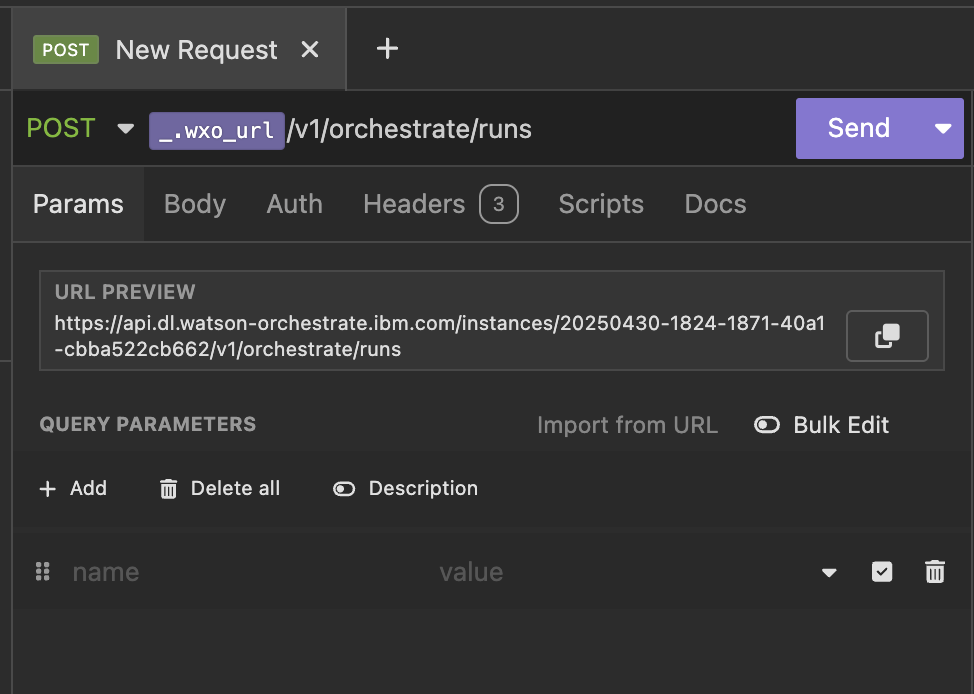
-
Navigate to the Auth tab, and select 'Bearer token' from the drop down list.
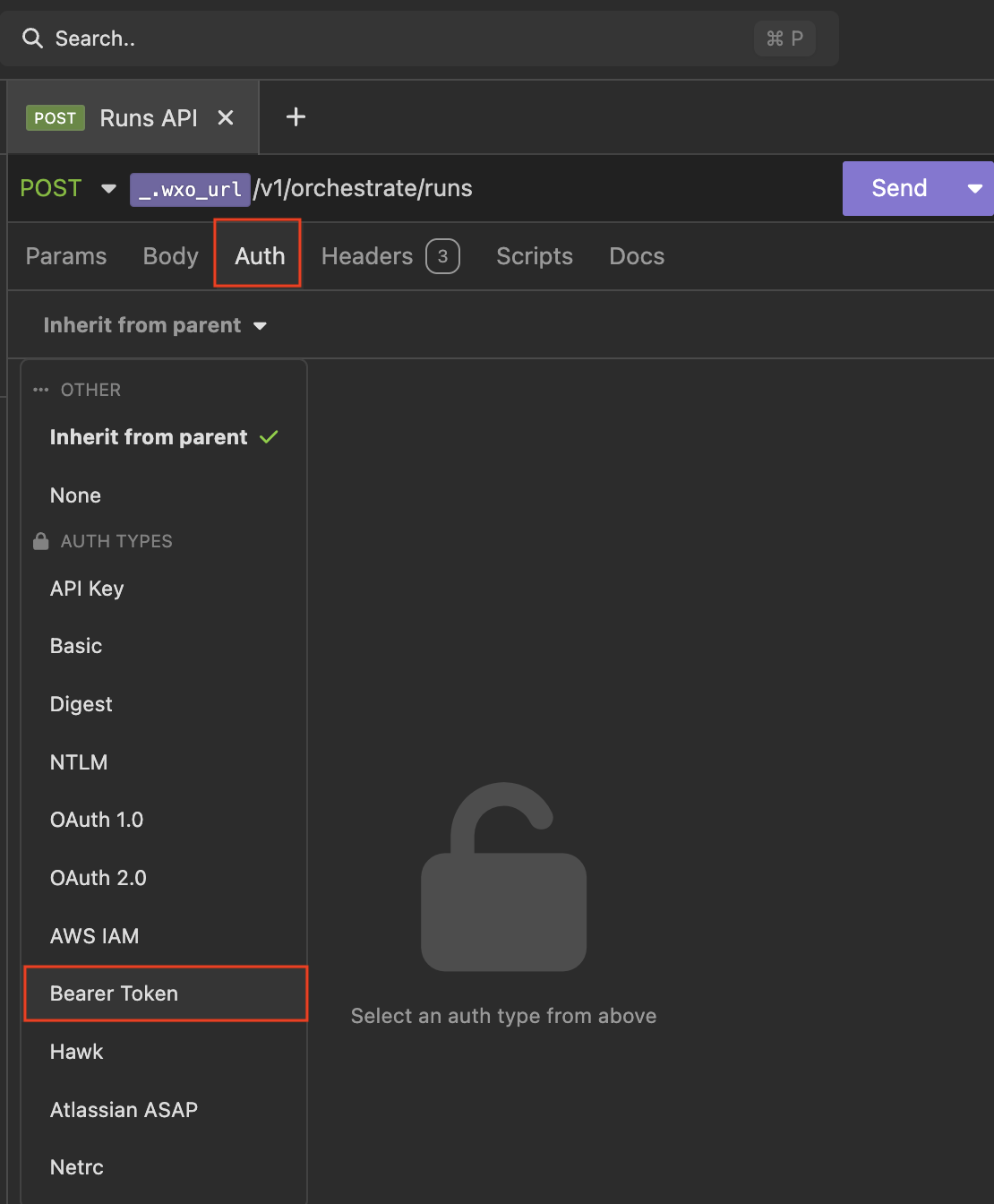
-
Next we will configure the token from the Token Auth API call as input to our Authorization token. In the Token field, type a period "." and select "Request -> OAuth 2.0 Access Token" from the list.
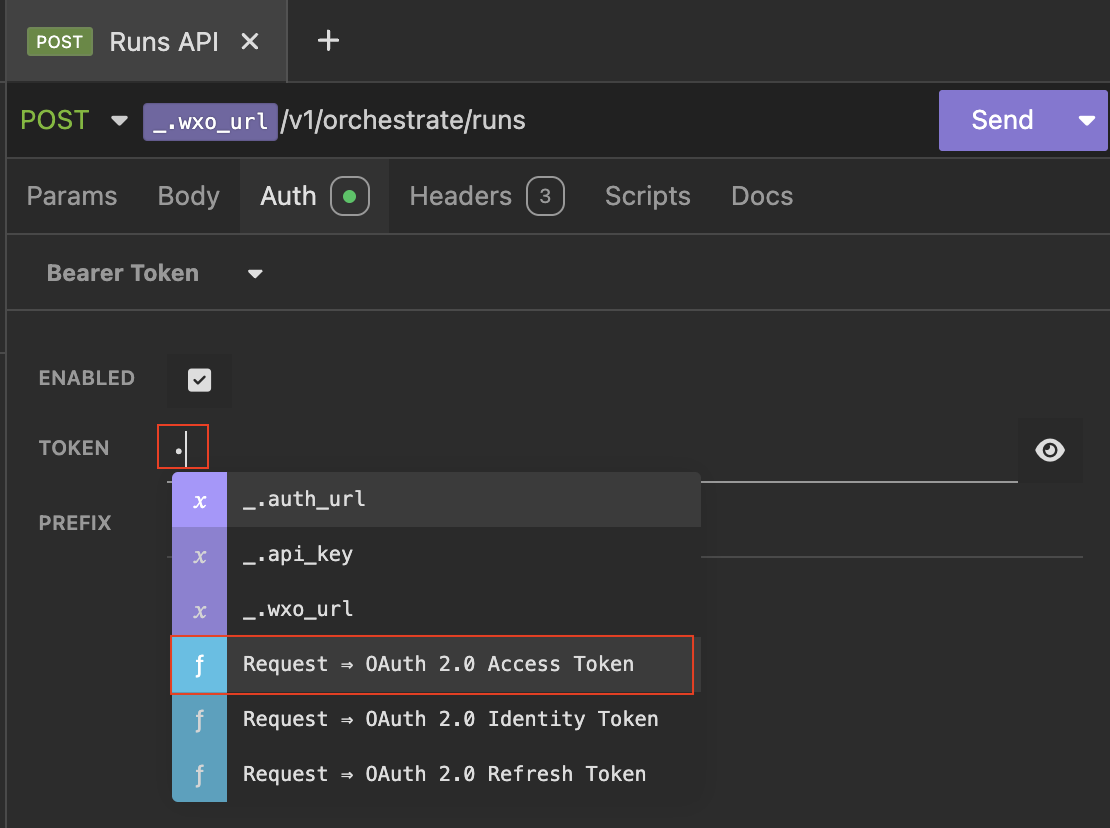
-
The result is an input variable that needs to be configured. Click on the unconfigured variable token and a configuration dialogue will appear.
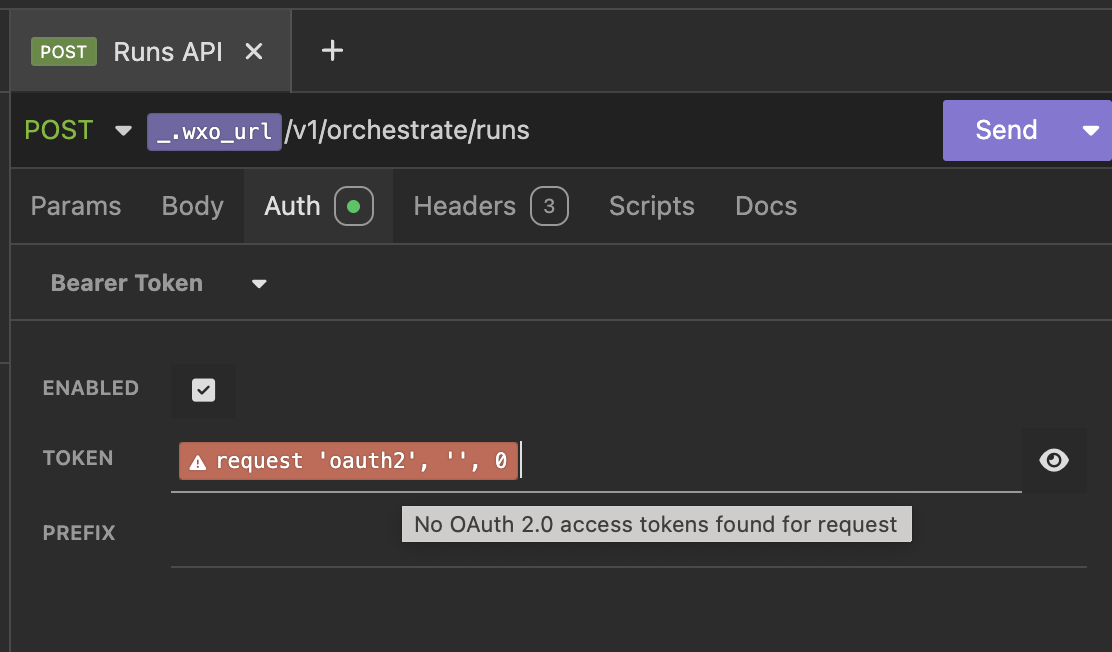
Variable configuration dialogue box:
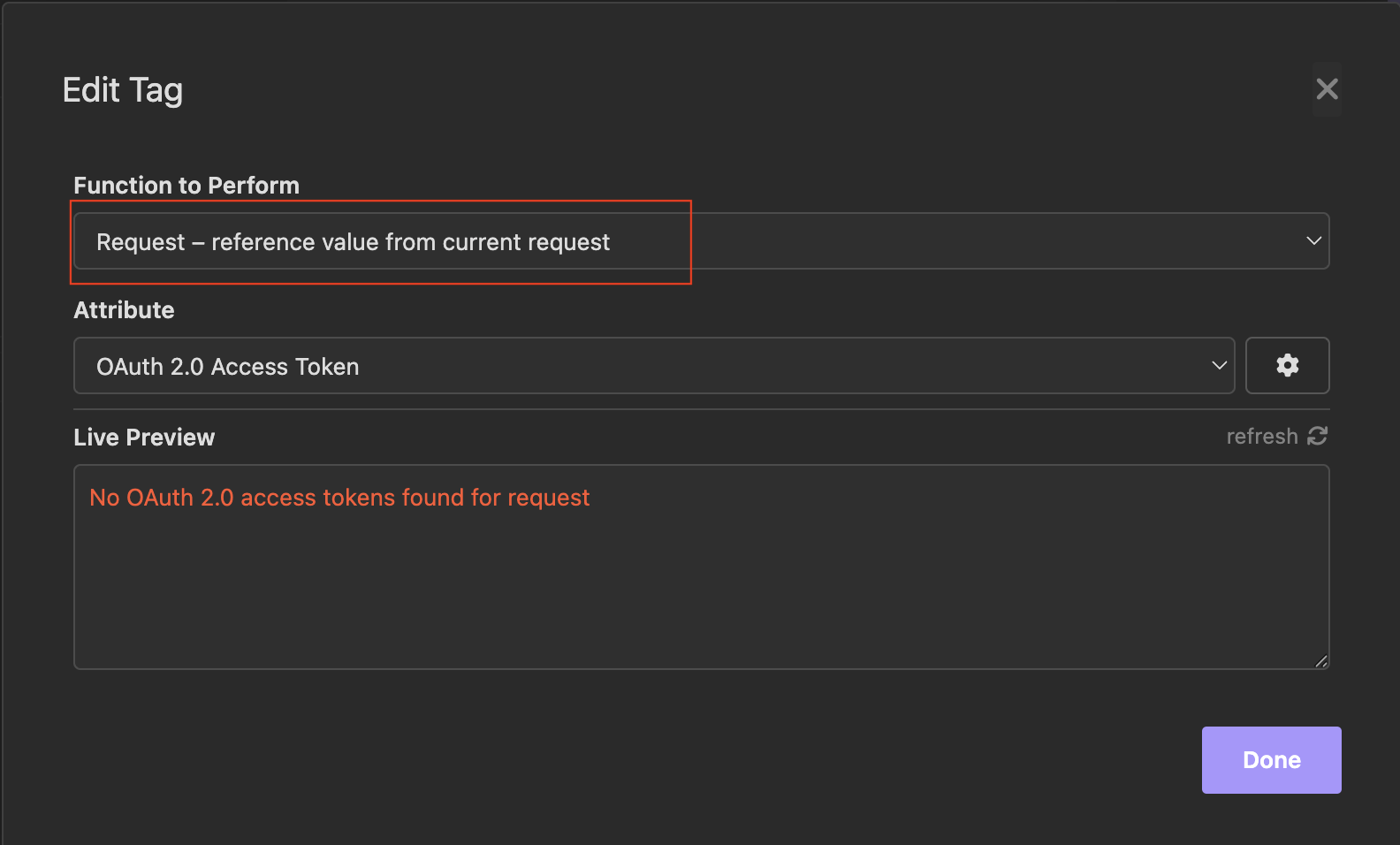
-
Click on the "function to perform" and select "Response - reference values from other request's responses"
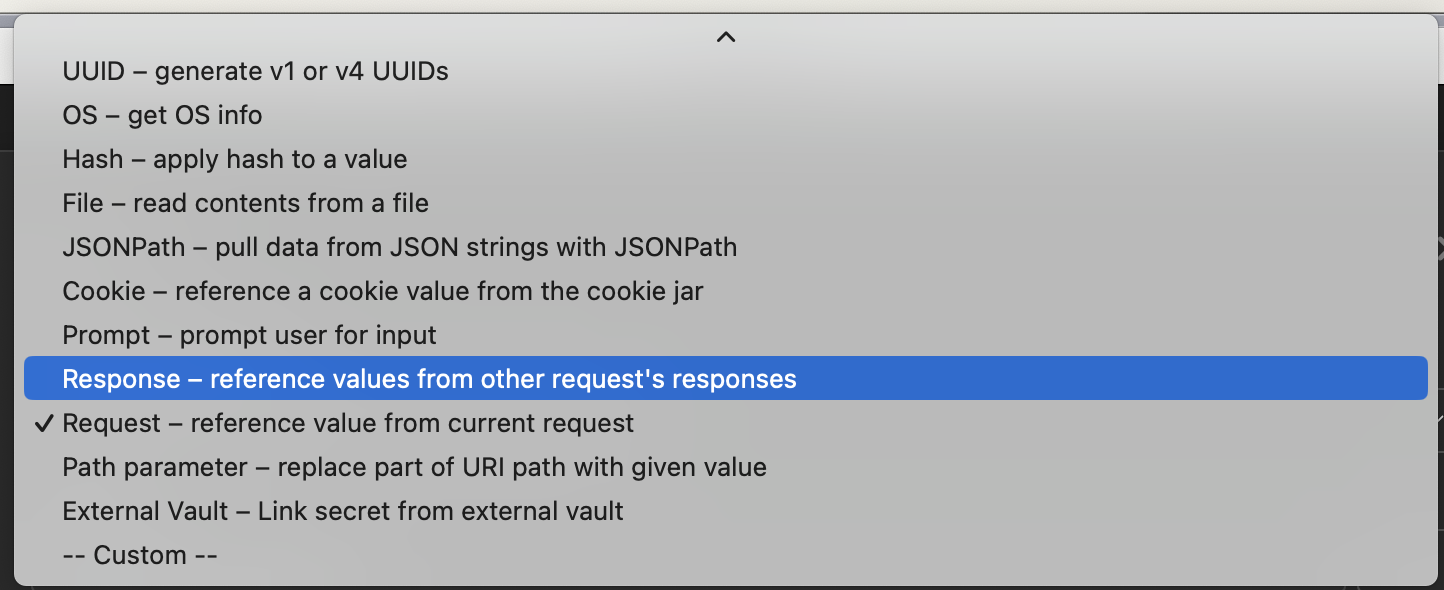
-
Under Attribute, select "Body Attribute - value of response body" and under Request select "POST Token Auth"
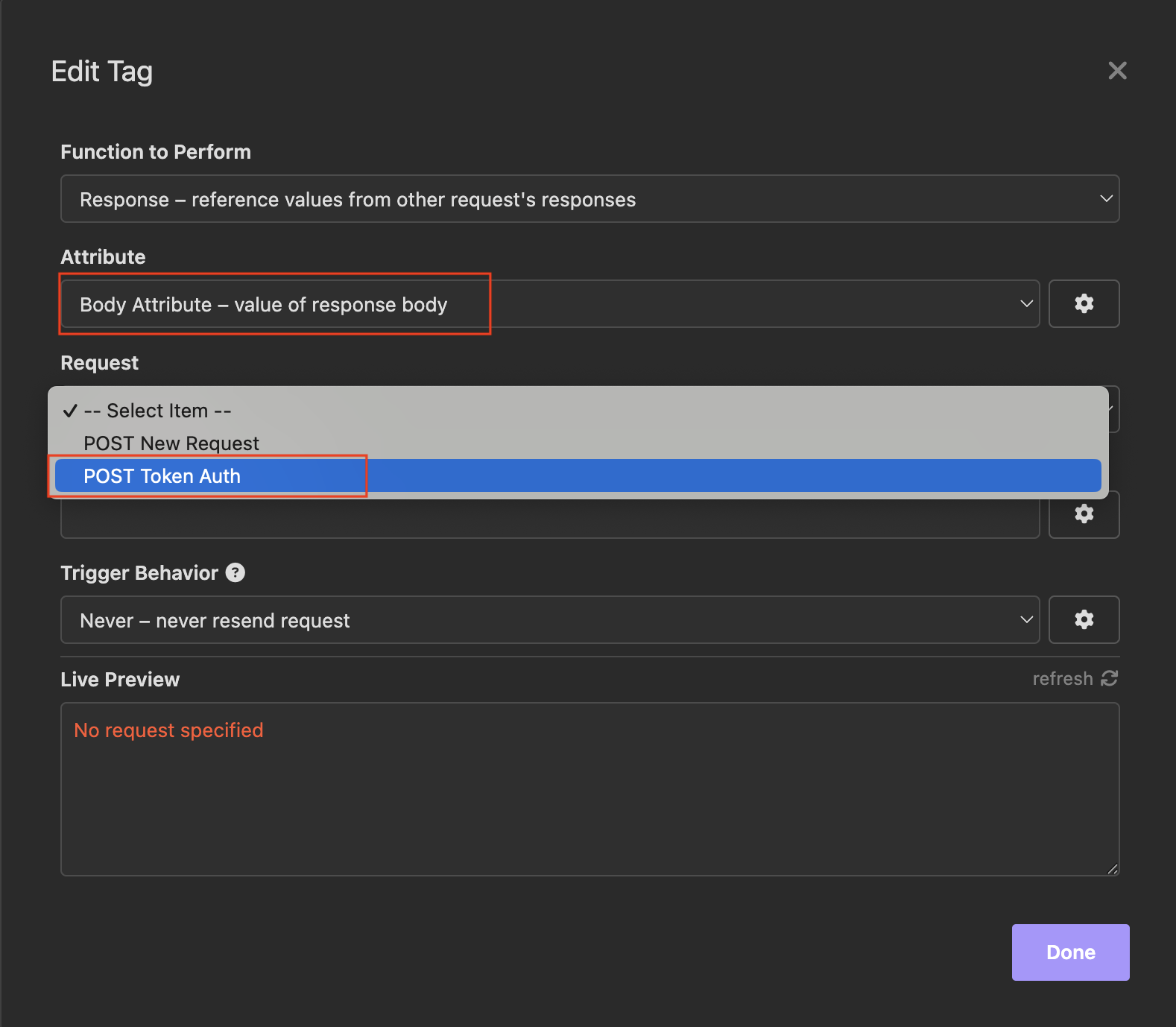
-
Lastly, configure the filter to fetch the "token" field from the Token Auth output. This can be done using the syntax
(which represent the token parameter from the output of the Token Auth API call, payload). You can see the token value in the 'live Preview" box at the bottom of the screen.
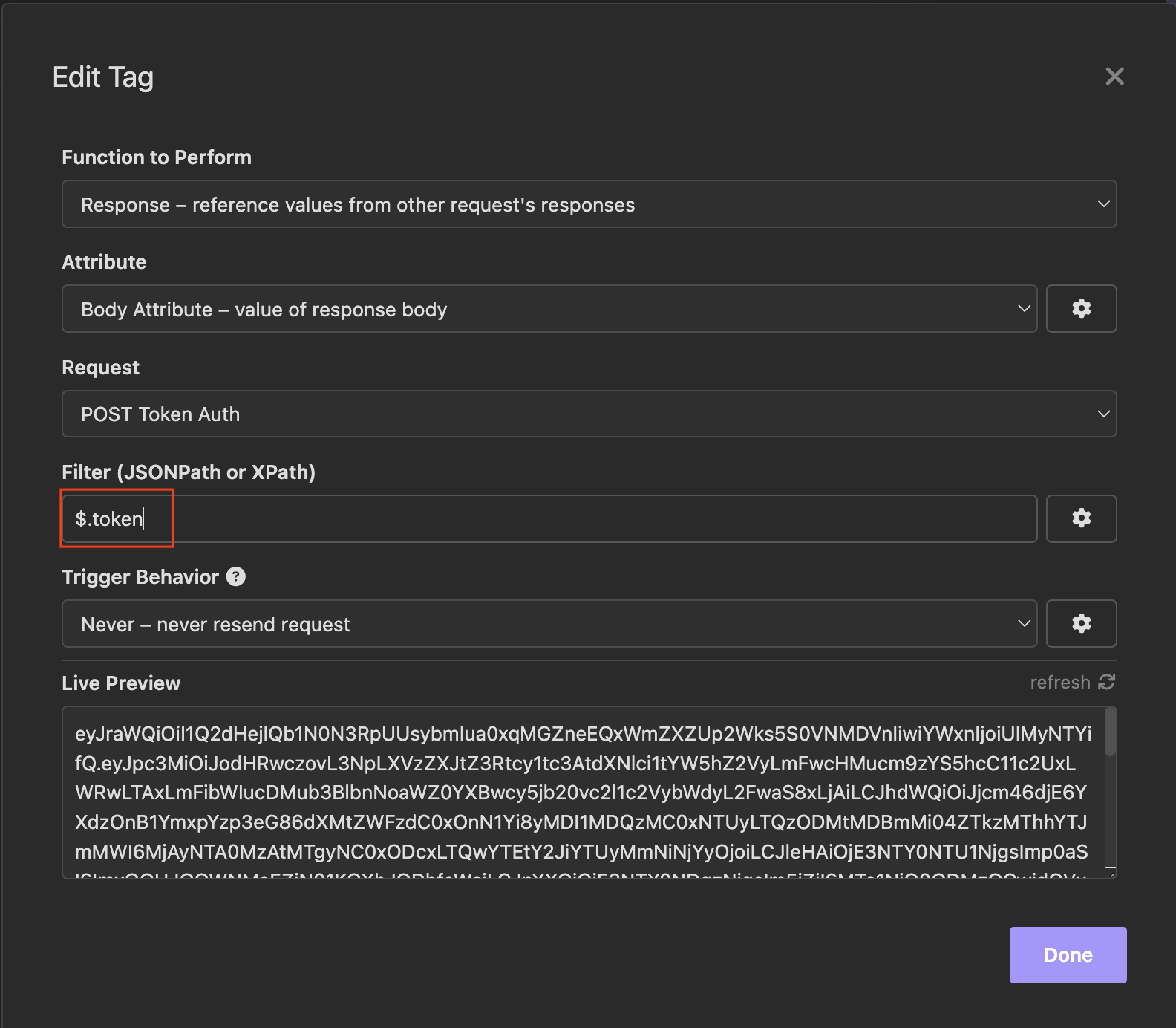
Click Done to complete this configuration. The correctly configured Auth section should look like this:
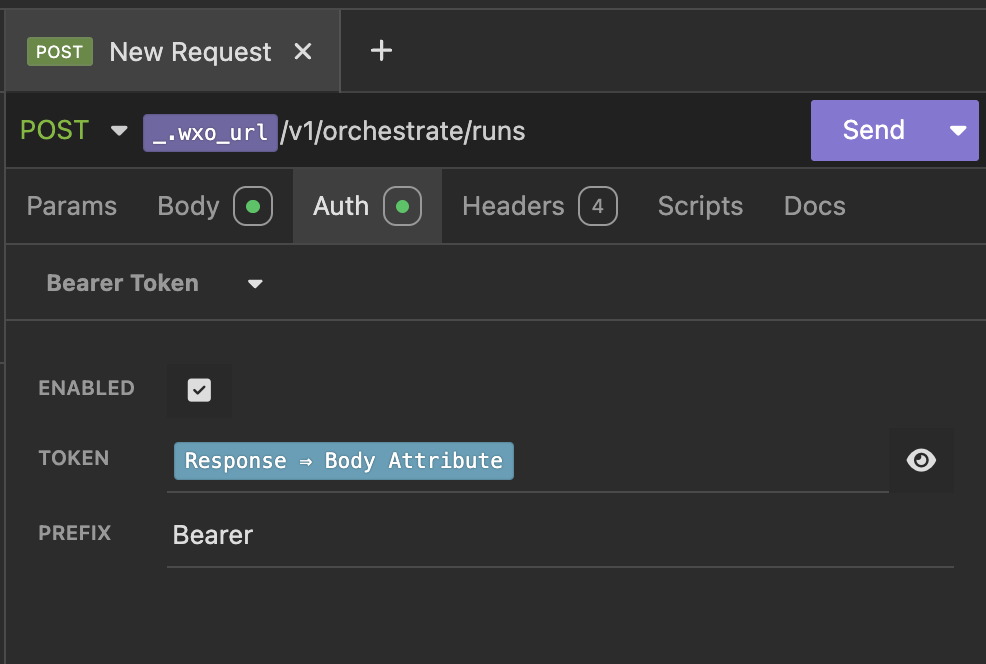
-
Now we need to configure the body section. Navigate to the body section and end the following text:
-
Since the Agent ID is saved in a variable, all you need to do is type a period "." in between the two quotations marks and a list of environment variables appear. Select agent_id from the list.
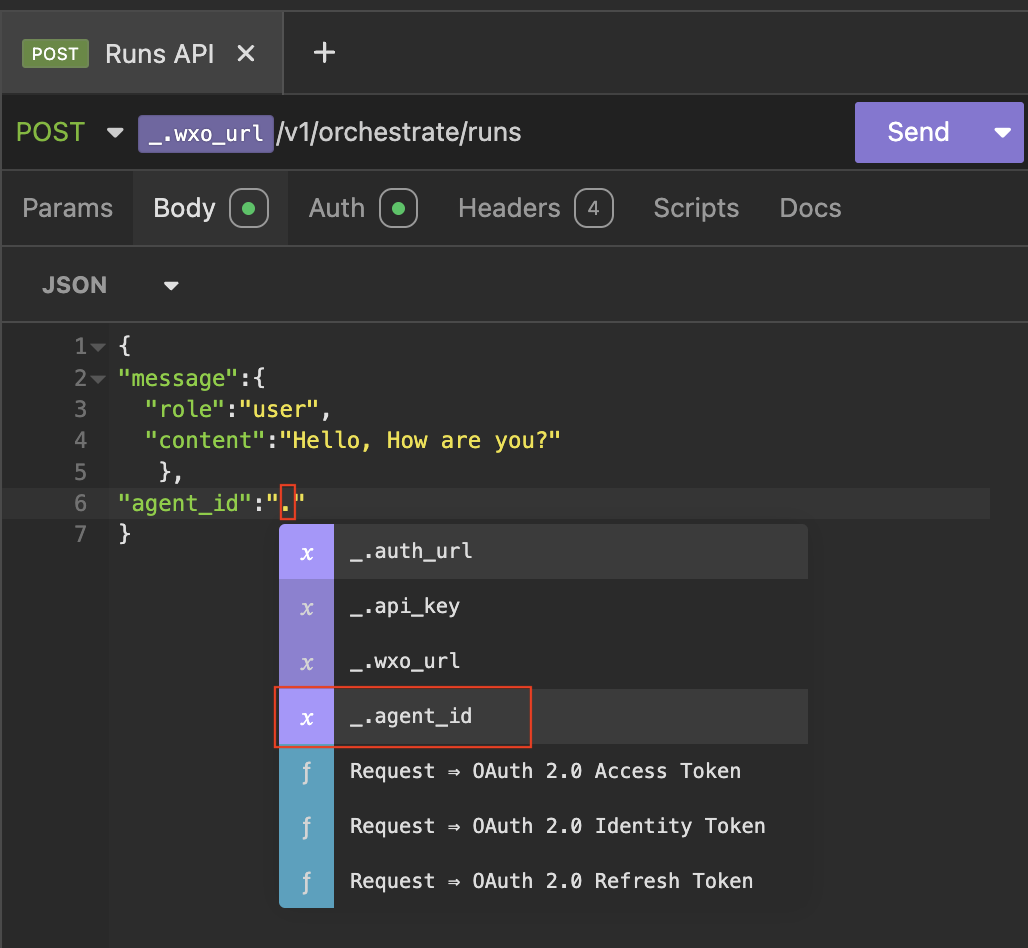
-
Now you can send your first message to the agent. Click Send. If everything is working, you can see the resulting object has a thread_id.
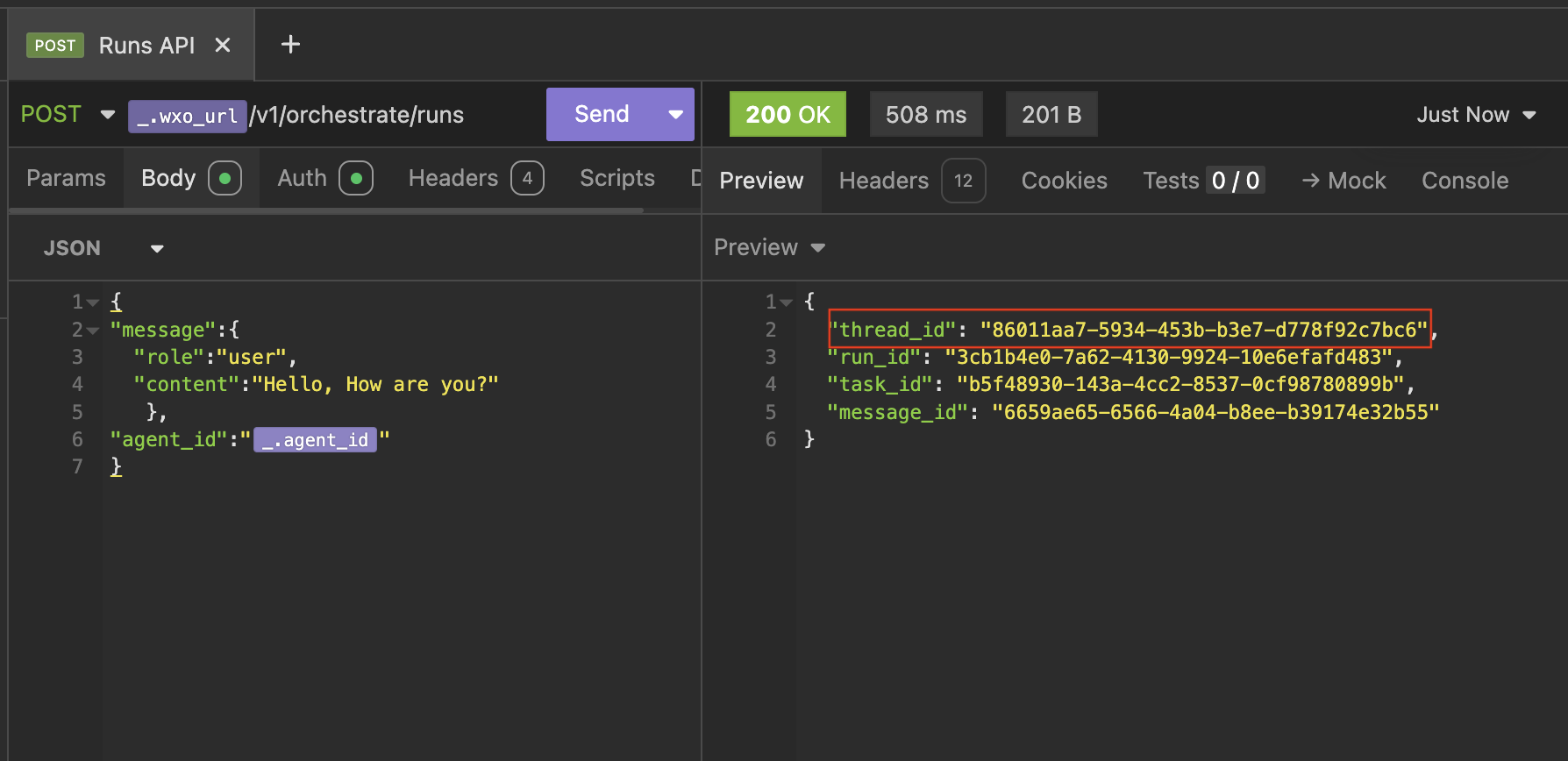
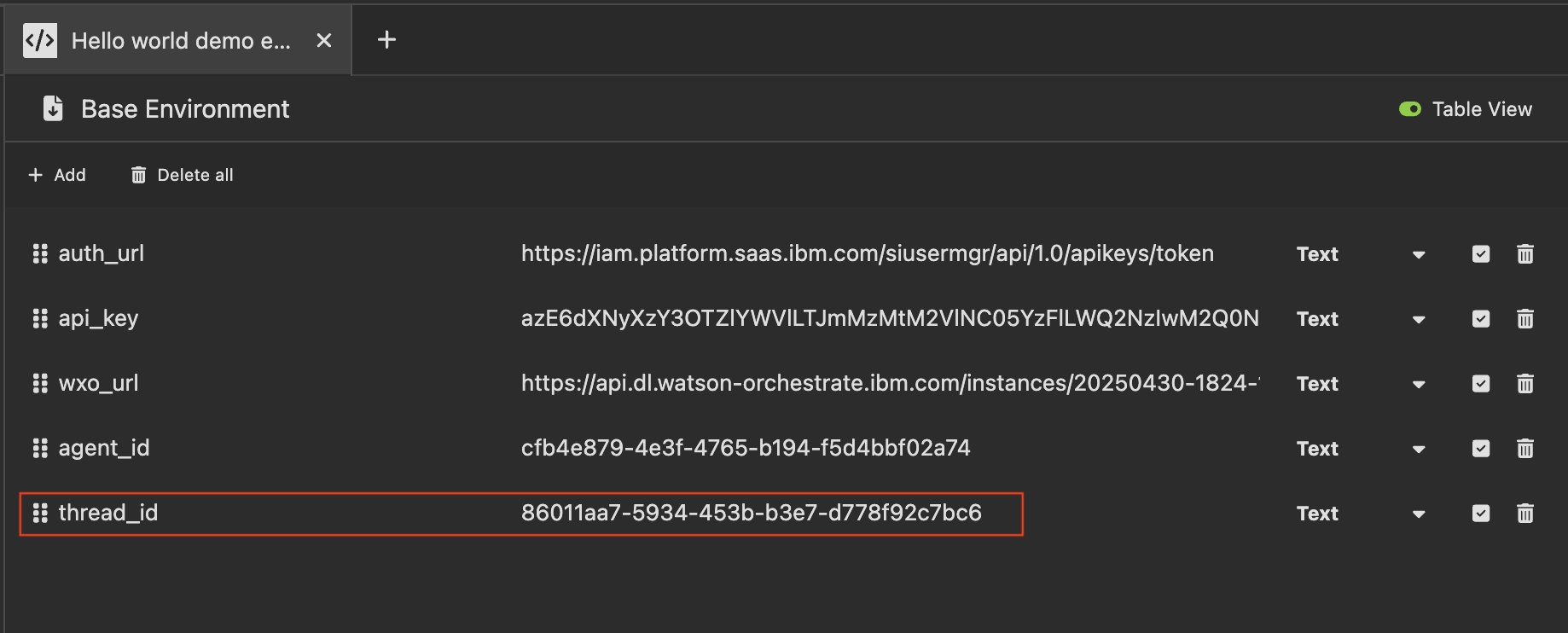
Save the thread_id as a new environment varible. We will use it to view the messages in the thread, using the /messages API.
Next steps
In the next step, we will view the new messages using the /messages api. If you are ready to start click next